Windows: Installing Python and Selenium
To install Python and Selenium you need to follow the list bellow:
- Install Python (2.7.x version)
- Add python home to path
- Add python home /scripts dir to path
- Install pip . Pip is a tool for installing and managing Python packages pip is a replacement for easy_install
- Install Selenium
XSS: Pay attention to input validation
“Experience shows that test cases that explore boundary conditions
have a higher payoff than test cases that do not.”
The art of software testing. Glenford J. Myers
Recently I was asked to look through a website to find undetected bugs with fresh pair of eyes.
First of all I decided to pay attention to boundary value analysis and I was rewarded. Since there were plenty of forms on pages it was detected:
- in the most inputs there were no boundary check (one could put value of any length that caused SQL error)
- no input data validation (phone number format, e-mail format, incorrect values and so on)
- and the most harmful was XSS
Jenkins:Windows Server R2 2008 x64:StarTeam
Here is main points how install and configure Jenkins on Windows Server R2 2008 x64 and how to configure Borland StarTeam plugin for it .
Installation
1. Install Java x64
2. Define JAVA_HOME and JRE_HOME environment variables for installed Java (e.g. C:\Program Files\Java\jre6\bin and C:\Program Files\Java\jre6 correspondently)
3. Download Apache Tomcat and unzip to the root of system volume (e.g. C:\Tomcat)
4. Download Jenkins.war and place it to Tomcat webapps folder (e.g. C:\Tomcat\webapps)
5. Launch Tomcat (startup.bat) and wait for Jenkins to be installed
6. By default Tomcat launches on localhost:8080. Navigate to localhost:8080/jenkins/pluginManager/available throw Configuration and add StarTeam plugin. Restart Jenkins
.NET Application Remote Web Deploy automation II
As and addition to previous post here some notes that could help you.
MS SQL server command line deploy
Minimal command line parameters set for SQL 2008 R2 setup
Setup.exe /q /ACTION=Install /FEATURES=SQLEngine /INSTANCENAME=MSSQLSERVER /SQLSVCACCOUNT="<DomainName\UserName>" /SQLSVCPASSWORD="<StrongPassword>" /SQLSYSADMINACCOUNTS="<DomainName\UserName>" /AGTSVCACCOUNT="NT AUTHORITY\Network Service" /IACCEPTSQLSERVERLICENSETERMS
With Integration services features:
Setup.exe /q /ACTION=Install /FEATURES=SQLEngine,IS /INSTANCENAME=MSSQLSERVER /SQLSVCACCOUNT="<DomainName\UserName>" /SQLSVCPASSWORD="<StrongPassword>" /SQLSYSADMINACCOUNTS="<DomainName\UserName>" /AGTSVCACCOUNT="NT AUTHORITY\Network Service" /IACCEPTSQLSERVERLICENSETERMS /ISSVCACCOUNT="<DomainName\UserName>" /ISSVCPASSWORD="<StrongPassword>"
For log enabling use /INDICATEPROGRESS option
By default /ISSVCACCOUNT = “NT AUTHORITY\NETWORK SERVICE”
More about command line prompt options one can find on MSDN
Read more…
CruiseControl.NET: PowerShell tasks II
In this post I describe how to pass build number into powershell tasks from CC config and how generate readable report for multiple powershell tasks after their execution by Cruise Control .NET.
Case study: One project QA approach
Intro
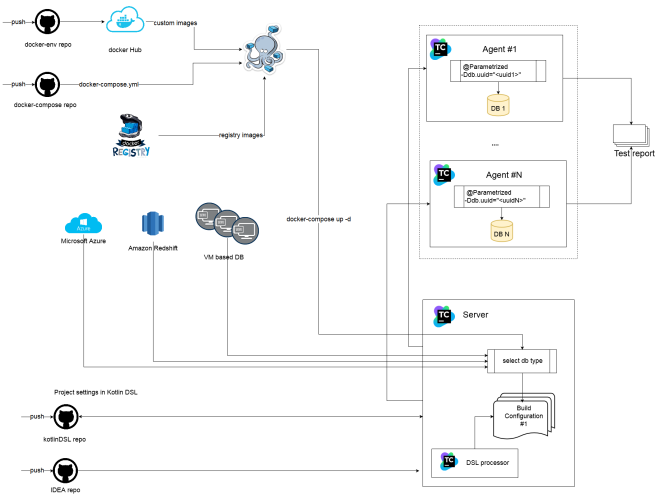
In this post I’d like to describe QA approach for one project I participate. The post will describe techniques for testing high availability and reliability for high scalable applications. There will be some examples to show how to apply this techniques.